A CSV import is the right move when your exchange does not have a read-only sync, when you want to bring in older history from before you connected an account, or when you are moving over from another journal. For exchanges that do support live sync, connecting a read-only key is usually less work because it keeps running on its own.
Export your history from the exchange
In your exchange or broker account, find the trade history or transaction history export. Most platforms let you pick a date range and download a CSV. Export the full range you want in Viktury, and keep the file as the exchange produced it. Re-saving it through a spreadsheet app can change the date format or column order, which makes the import harder to read.
Upload it in Viktury
On the Add account screen, choose your exchange and the Upload CSV option, give the account a name, and select your file. Viktury hands the file to its parser for that exchange and builds a preview.
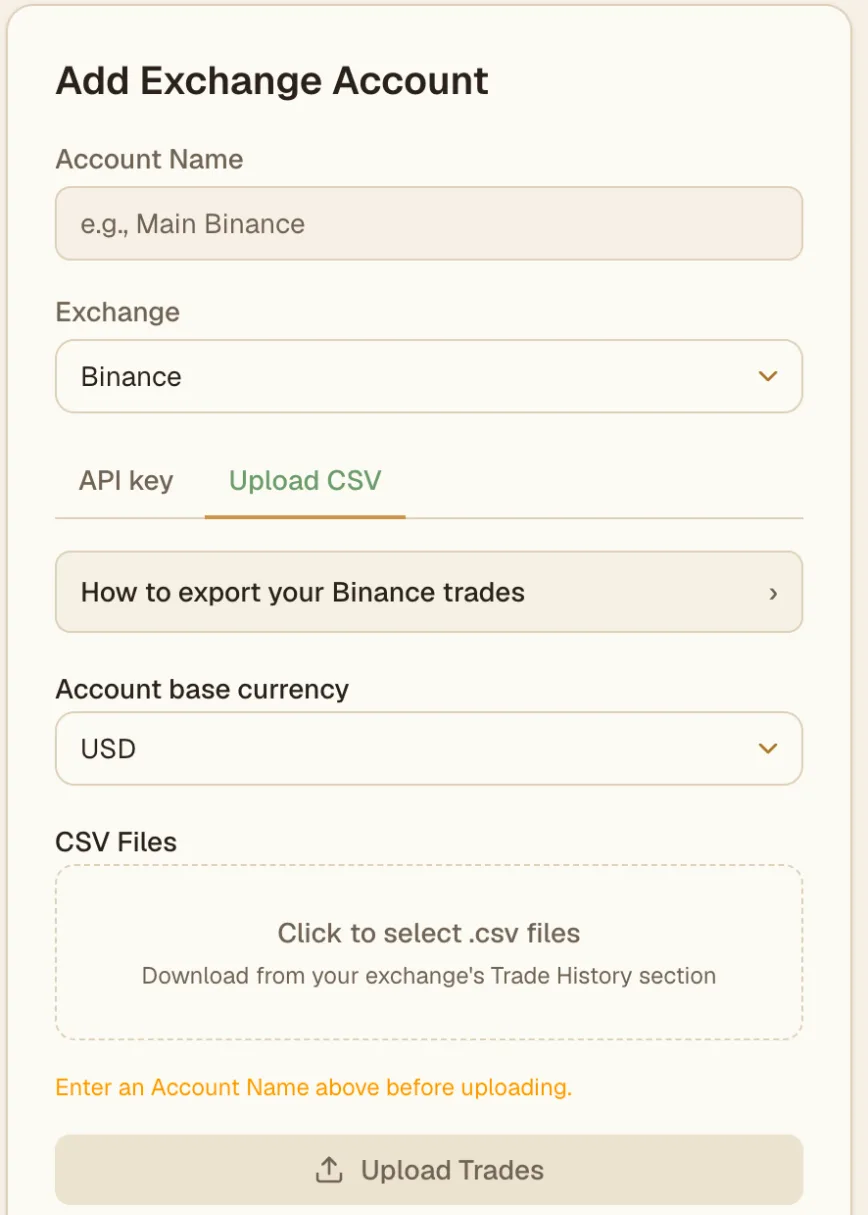
Review the preview before committing
Viktury does a dry run first. It shows you the trades it parsed out of your file and flags rows it thinks are duplicates of trades you already have, so re-importing an overlapping date range will not double-count anything. Look over the preview, then either commit the import to save those trades or discard it if something looks wrong. Nothing lands in your journal until you commit.
Troubleshooting
- Columns look misread or trades are missing. Make sure you uploaded the export from the matching exchange, and that it is the raw file rather than one re-saved by a spreadsheet app. Each exchange has its own column layout, and the parser expects that exchange's native format.
- Everything shows as a duplicate. That date range is probably already in your account from a sync or an earlier import. Discard and import only the older range you are missing.
- The file will not parse at all. Confirm it is a CSV (not an XLSX or PDF) and that it actually contains trade or transaction rows, not just a balance summary. If it still fails, send it to us through the contact form and we will look.