Revolut connects to Viktury through a CSV export of your trading history rather than a live API key. You export a statement of your trades from Revolut, then upload it. Because there is no key involved, there is nothing that could ever trade or move money on your behalf.
Export your trading history from Revolut
-
On a computer, open Revolut Invest at invest.revolut.com (on app.revolut.com it sits in the app switcher at the top right). Open your profile menu and pick Documents. Viktury imports stock and ETF trades from Revolut; crypto you trade on Revolut X connects as its own Revolut X account (see Connect Revolut X).
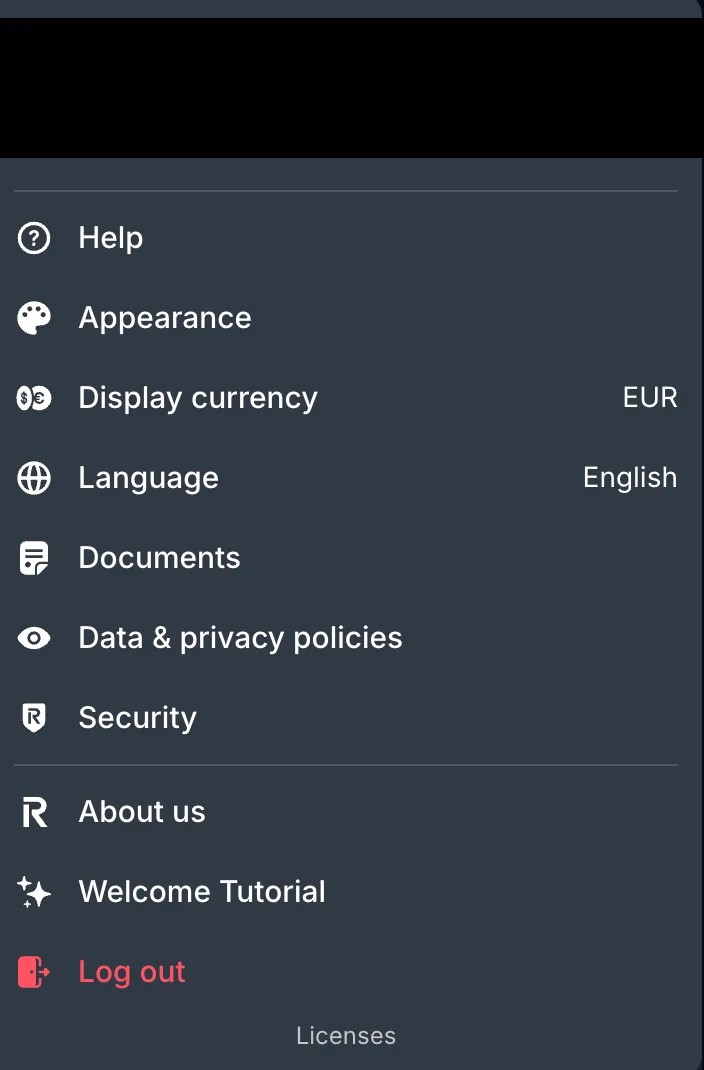
In Revolut Invest, open your profile menu and pick Documents. -
Pick Brokerage account.
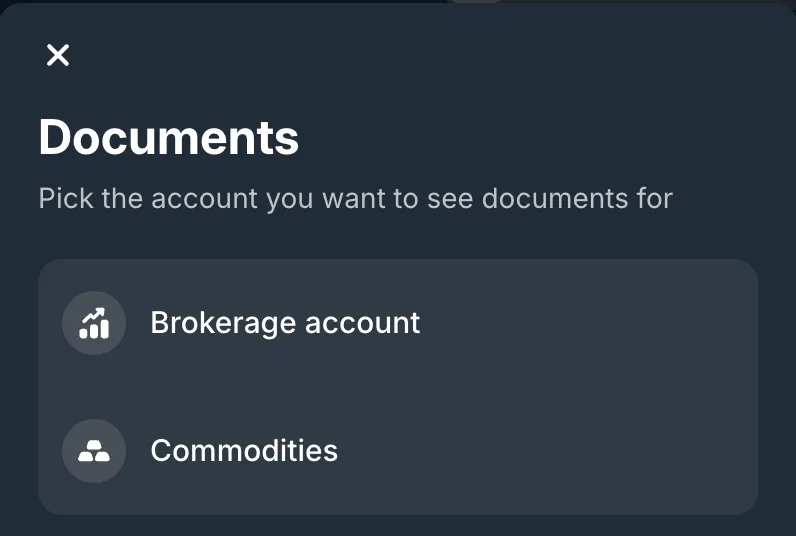
Pick Brokerage account. -
Pick Account statement, not Profit & Loss.
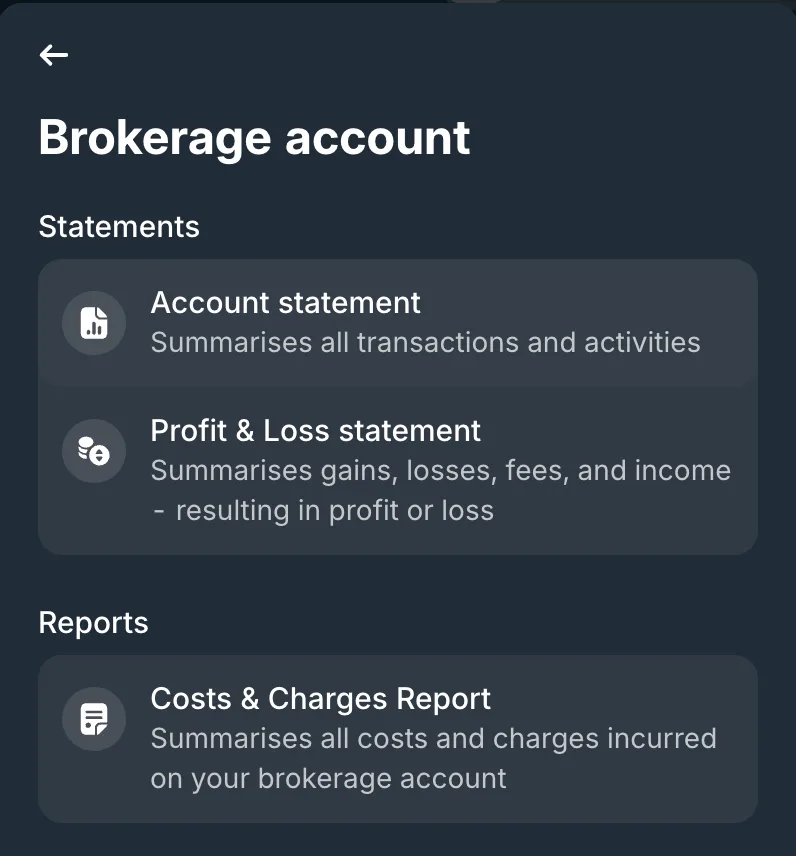
Pick Account statement, not Profit & Loss. -
Choose Excel. Despite the name, it downloads a CSV file, which is the one to upload. Pick the period you want and click Get statement. Keep the file as Revolut produced it; re-saving it through a spreadsheet app can change the layout and make it harder to import.
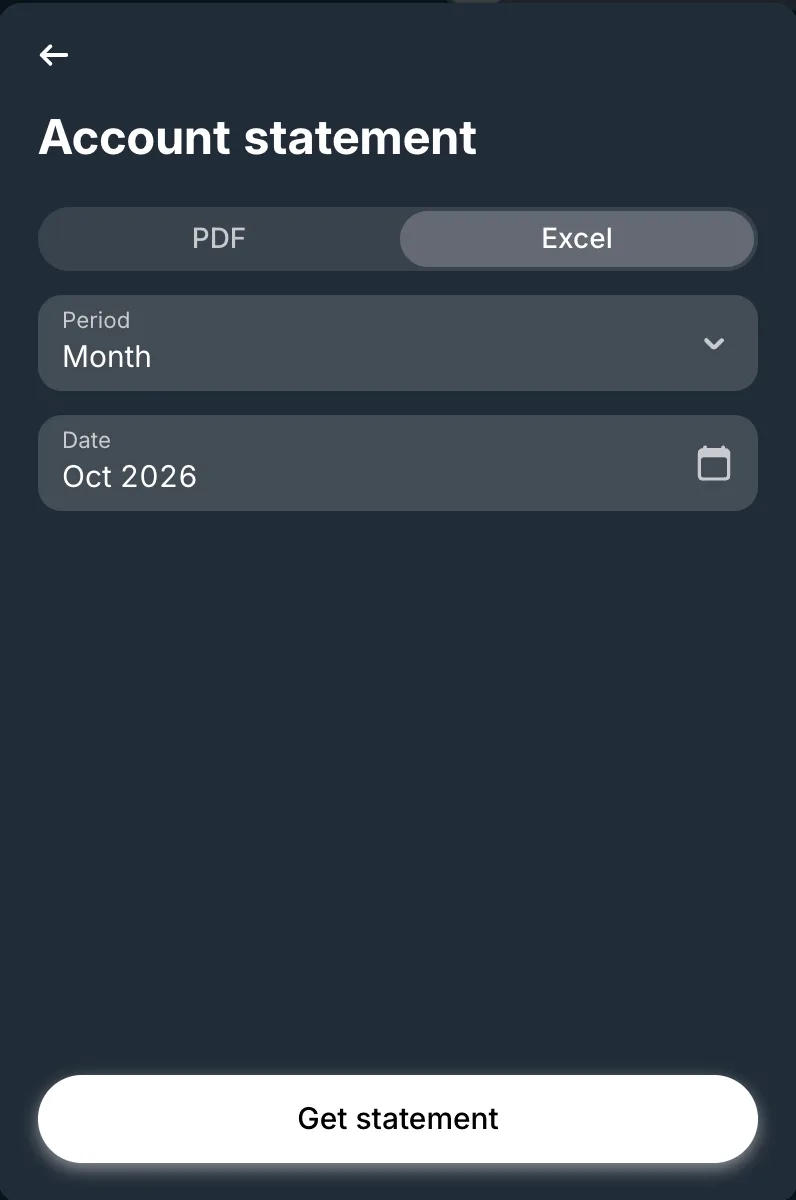
On the web, Excel gives you a CSV file, which is the one to upload.
On your phone, the same statement is in the Revolut app under Invest, then More (the "..." button), then Documents, where the account is called Stocks.
Add it to Viktury
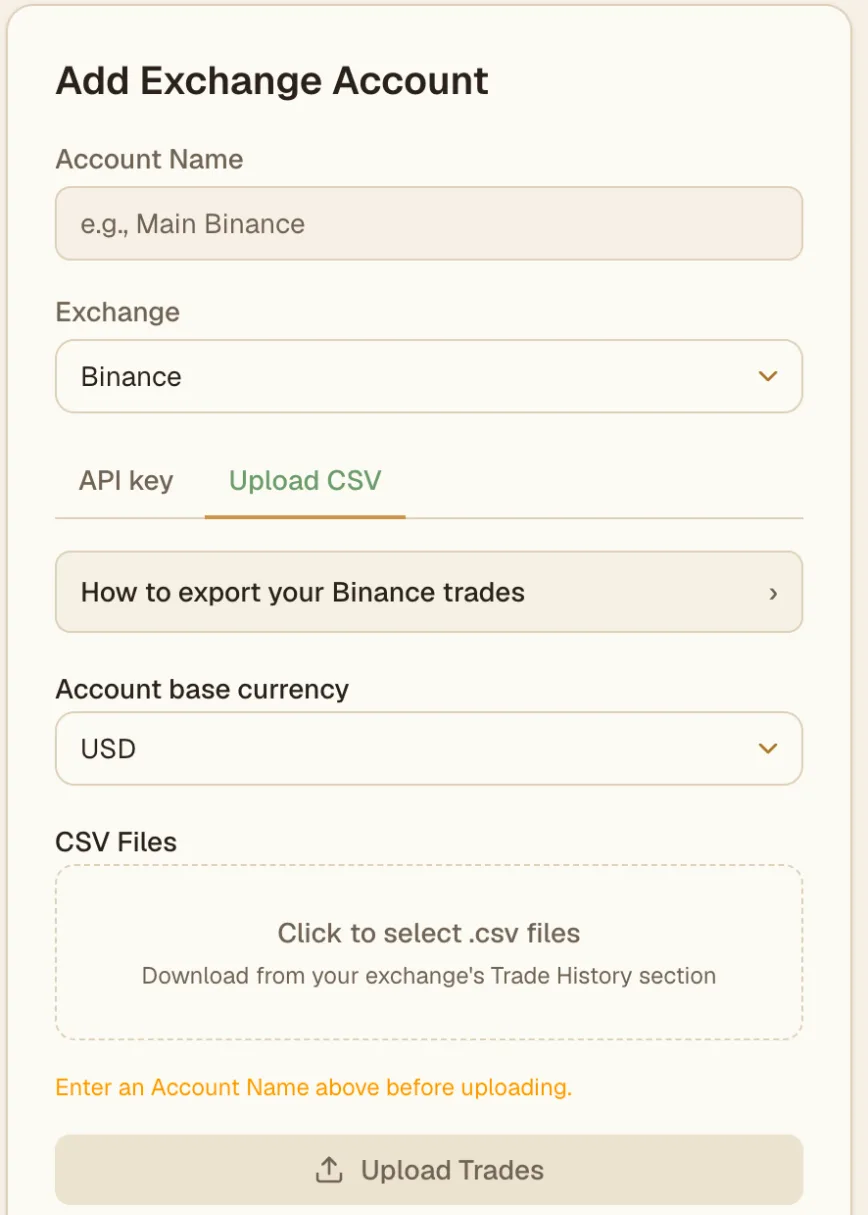
On the Add account screen, choose Revolut, name the account, and use the Upload CSV option to select your file. Viktury parses it and shows a preview with duplicates flagged before saving. Review it, then commit or discard. Upload a newer export later to add more trades; duplicate detection keeps overlapping rows from counting twice.
Troubleshooting
- Columns look misread. Make sure it is the raw Revolut export, not a re-saved spreadsheet file.
- Nothing imports. Confirm the file lists individual trades or transactions rather than just a balance or summary.
- Everything shows as duplicate. That range is already in your account. Upload only the newer trades. If the file still will not parse, send it to us through the contact form.